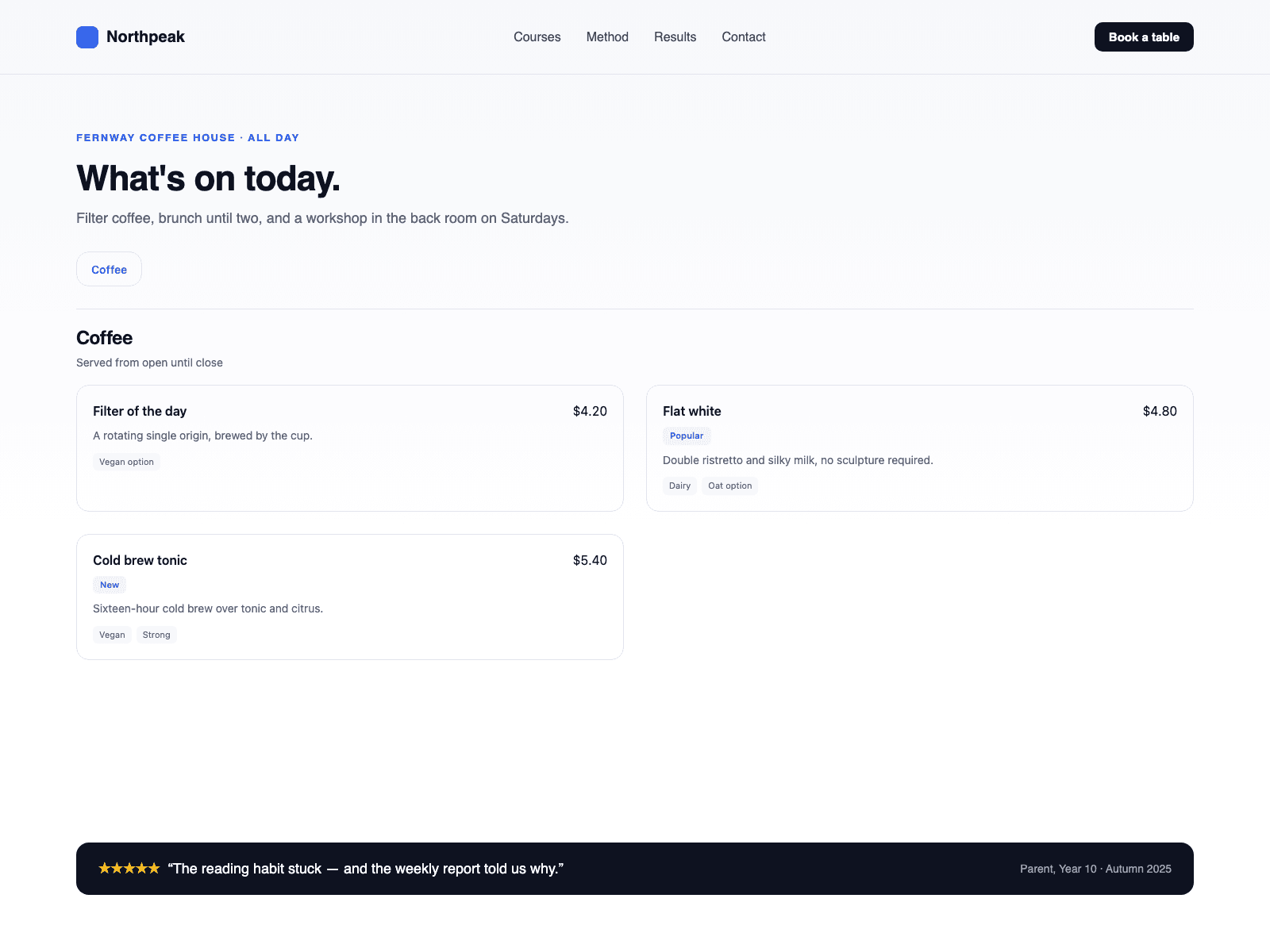
About Aisol Menu Board
Build a menu from a CMS collection in three steps. Drop a Collection List into the Items (CMS) slot and turn off its Pagination so every item is read; the original list stays hidden and its Load more button is not shown. Name the item's text layers Name, Price, Category, Tags and Description (optionally Badge and Image). Publish: every CMS item becomes a menu row, grouped under a heading for each Category.
Each new Category adds a heading and a nav button, in the order the items appear. Items without a Category go to a final group you name. Add entries to Categories to set their order and give them a note, such as opening hours. Layer names can be changed in the panel.
Rows: name, price behind a dotted leader or in cards, badge, description, image and tags as chips. A link inside a CMS item makes the row name a link. Images must use https URLs (Framer image fields and CMS images already do); http or relative image links are skipped.
Initial count shows only the first N rows from the Collection List with a Show more button that reveals N more per click; 0 shows all.
Category nav: Jump scrolls to a heading. Filter shows one category at a time, with an All button.
No CMS yet? Leave the slot empty and type Categories and Items in the panel.
Real headings and lists, pressed states on filter buttons and a hidden Price label. The canvas shows the Collection List as it is; the menu appears in Preview and on the site.