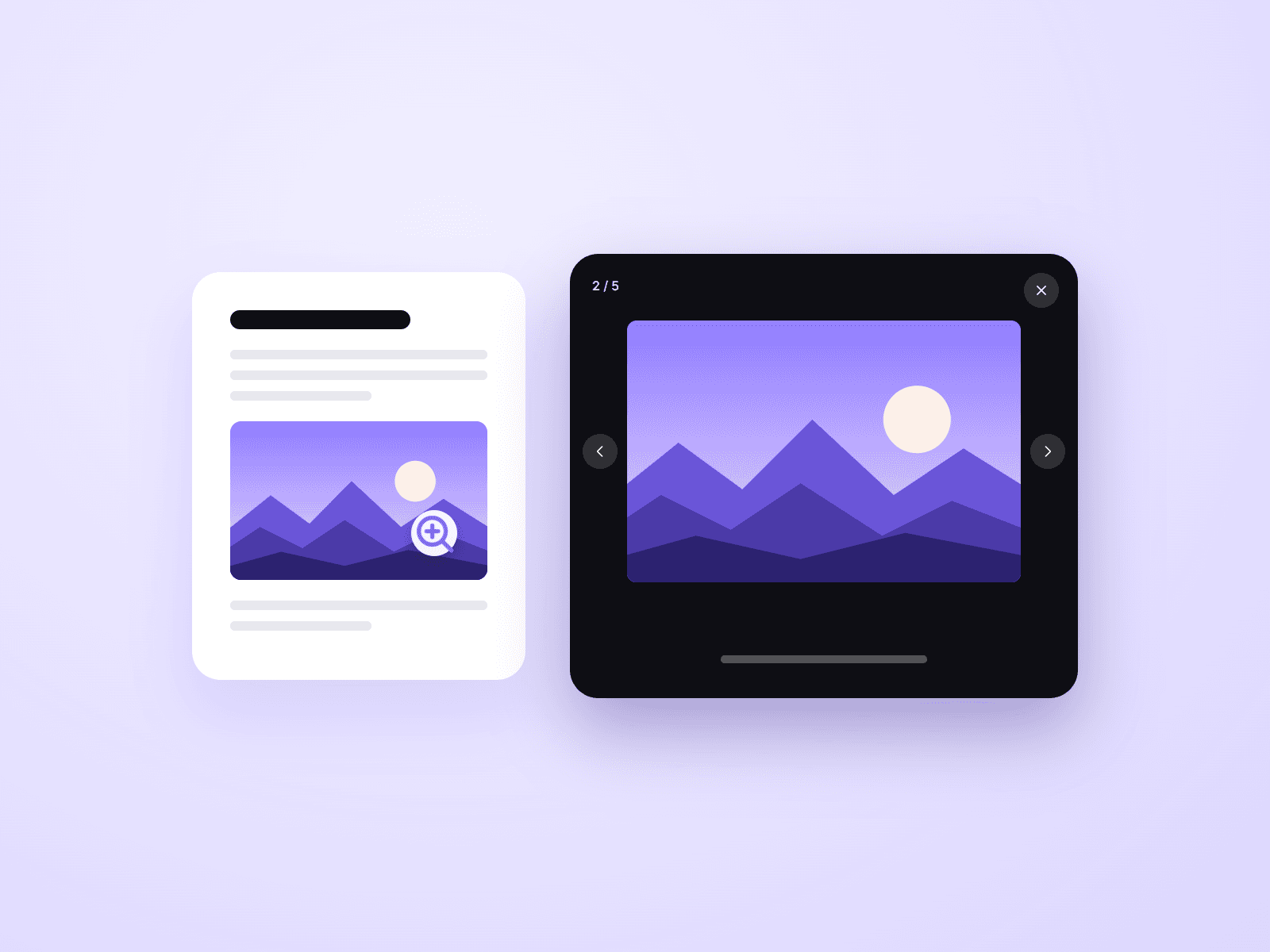
About Article Image Zoom
Article Image Zoom opens the images in your Framer CMS blog posts full screen when a visitor clicks them. Add it once to your blog post page, name your article layer "Article", and it works on every post. There is nothing to set up per image.
What you can customize
Everything is set from the property panel. No code needed.
- Article Layer: the name of the layer that holds your article
- Min Size, so icons and small images are left alone
- Browse: Gallery (arrows, swipe and arrow keys) or Single
- Caption from the image caption or alt text
- Counter, such as 2 / 5
- Zoom animation or instant
- Backdrop color and blur
- Padding and corner radius
- Button, icon and caption colors, and the caption font
Details
- The image grows out of its place in the post and shrinks back when closed.
- The sharpest version of the image loads when it opens.
- Closes with Escape, the close button, or a click anywhere.
- Images with a link keep their link.
- The viewer works with the keyboard and screen readers, and respects "reduce motion".
- It only listens inside your article layer and leaves the rest of the page untouched.
How to use
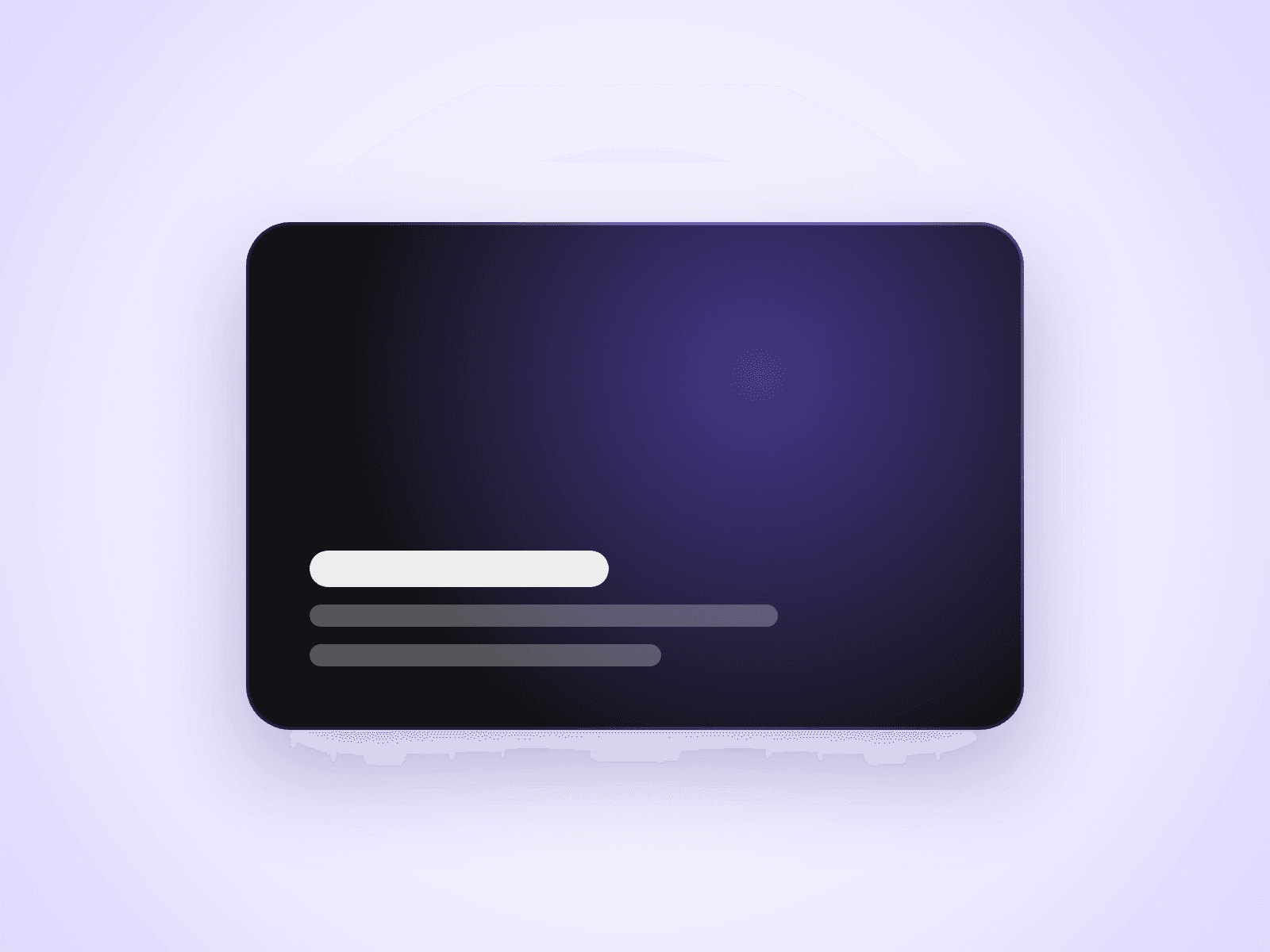
Paste the component onto your CMS blog post page and set its Position to Absolute. It is invisible on your live site. In the Layers panel, name the layer that holds your article "Article" (or type its name into Article Layer). Open the preview and click an image in your post. The canvas shows a placeholder card, because the zoom only runs in the preview and on your site.
Pairs well with Article TOC, an automatic table of contents for your posts.
Code
This is a code component. Unlinking is not available, so the source cannot be viewed or edited. Updates arrive through the Update button in your Assets panel.
Support
Email joviseo1106@gmail.com. Replies usually take up to 3 business days. More components are at https://joviseo.vercel.app