About Chat on WhatsApp
This component is Part of the Essential Components plugin. Browse and insert 30+ components directly in Framer. Start for free
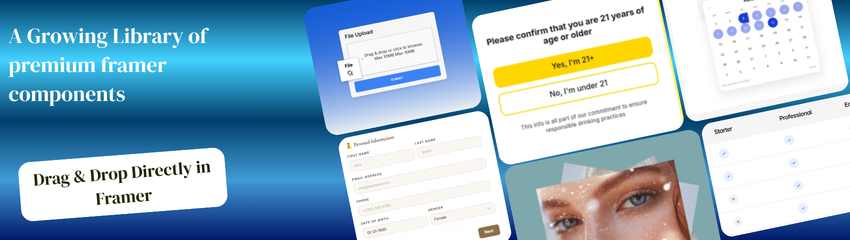
A fully customizable WhatsApp component for Framer that enables instant customer communication. Perfect for businesses looking to streamline customer support and boost engagement through WhatsApp messaging.
How to Use in Framer
Copy and paste the component into your Framer project.
It’s best to add it to the Template page (the page that contains the Navigation and Footer) so it appears on all pages.
Set the position to fixed and adjust it so the component sits on the left or right side of the page.
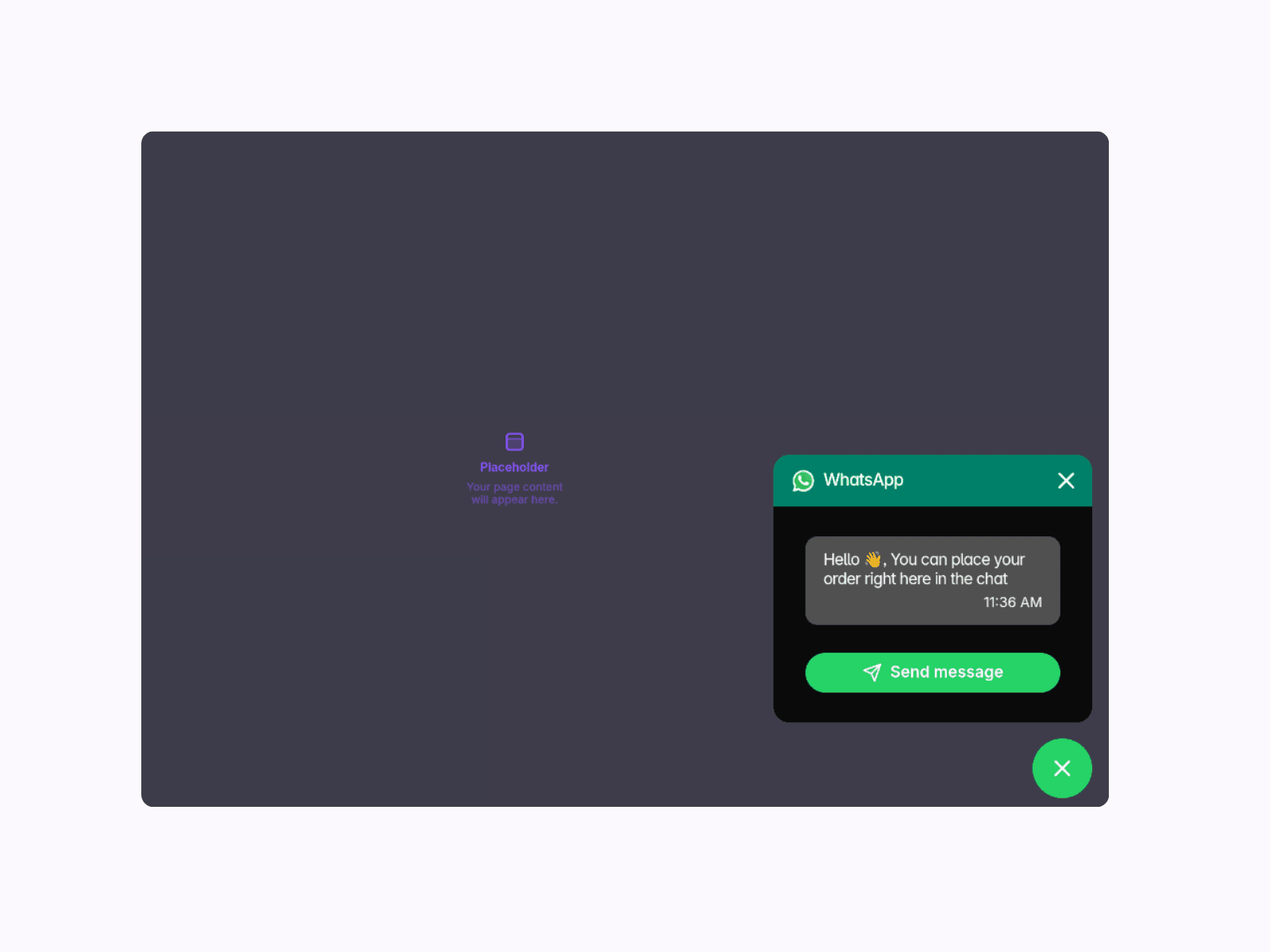
You can customize all the widget properties, including the header text, header icon, header color, and the overall background to match your brand.
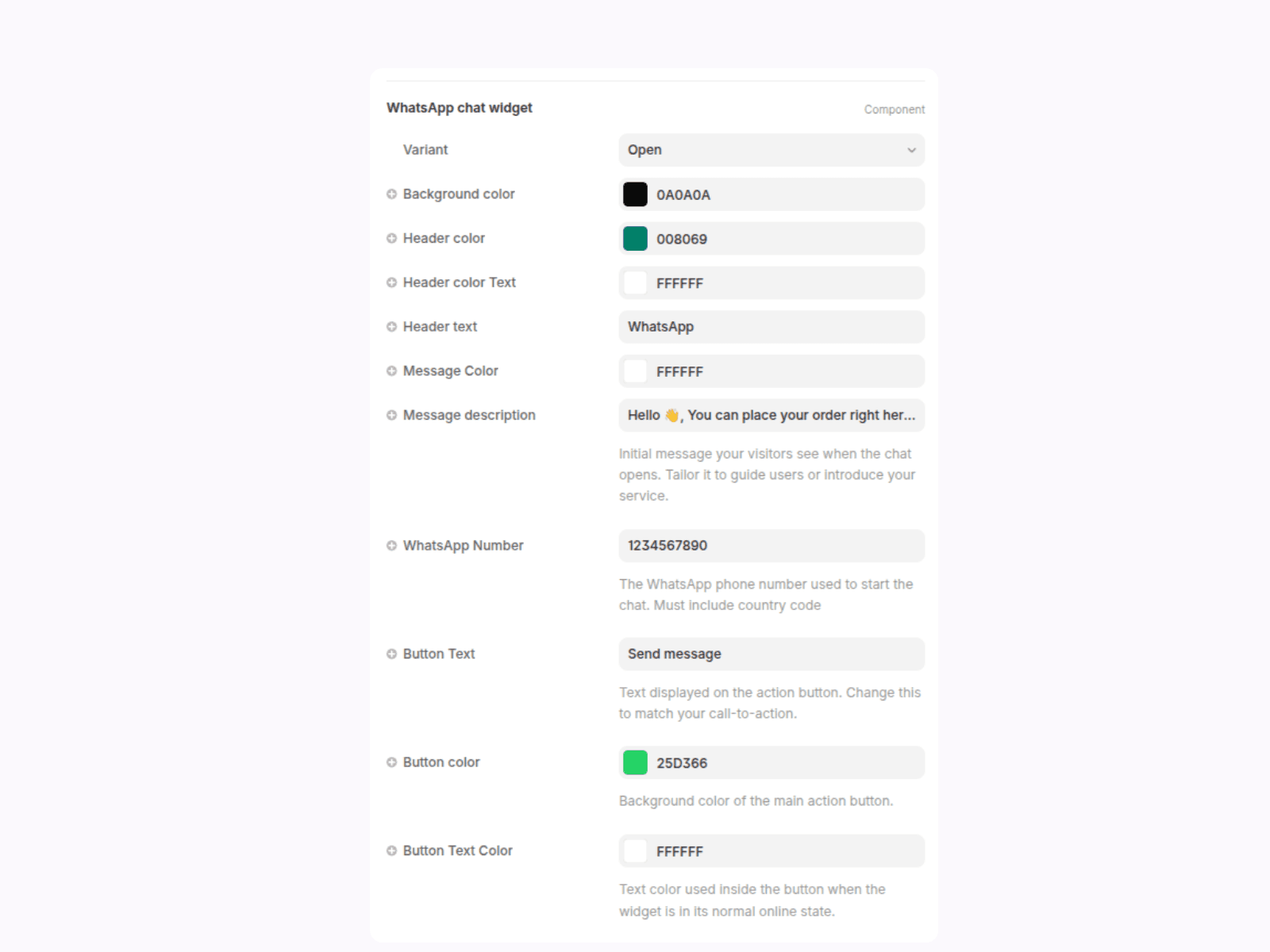
The chat on WhatsApp is a component with two variants:
Closed Variant:Displays a WhatsApp icon with an optional notification indicator.
Open Variant:Reveals the full component with quick message like “Hello 👋, You can place your order right here in the chat. You can fully customize this text.
When the user clicks the Send Message button, they are redirected to WhatsApp Web (on desktop) or the WhatsApp app (on mobile).
Phone Number: Enter your WhatsApp number with country code (no + or spaces), e.g., 1234567890 (US) or 447123456789 (UK).
Pre-filled Message: Set the default message customers will send, e.g., "Hello! I would like to know more about your services."
Button Text: Customize the button label (default “Send message”), e.g., “Contact Us,” “Get Support,” or “Chat Now.”
Customize your button
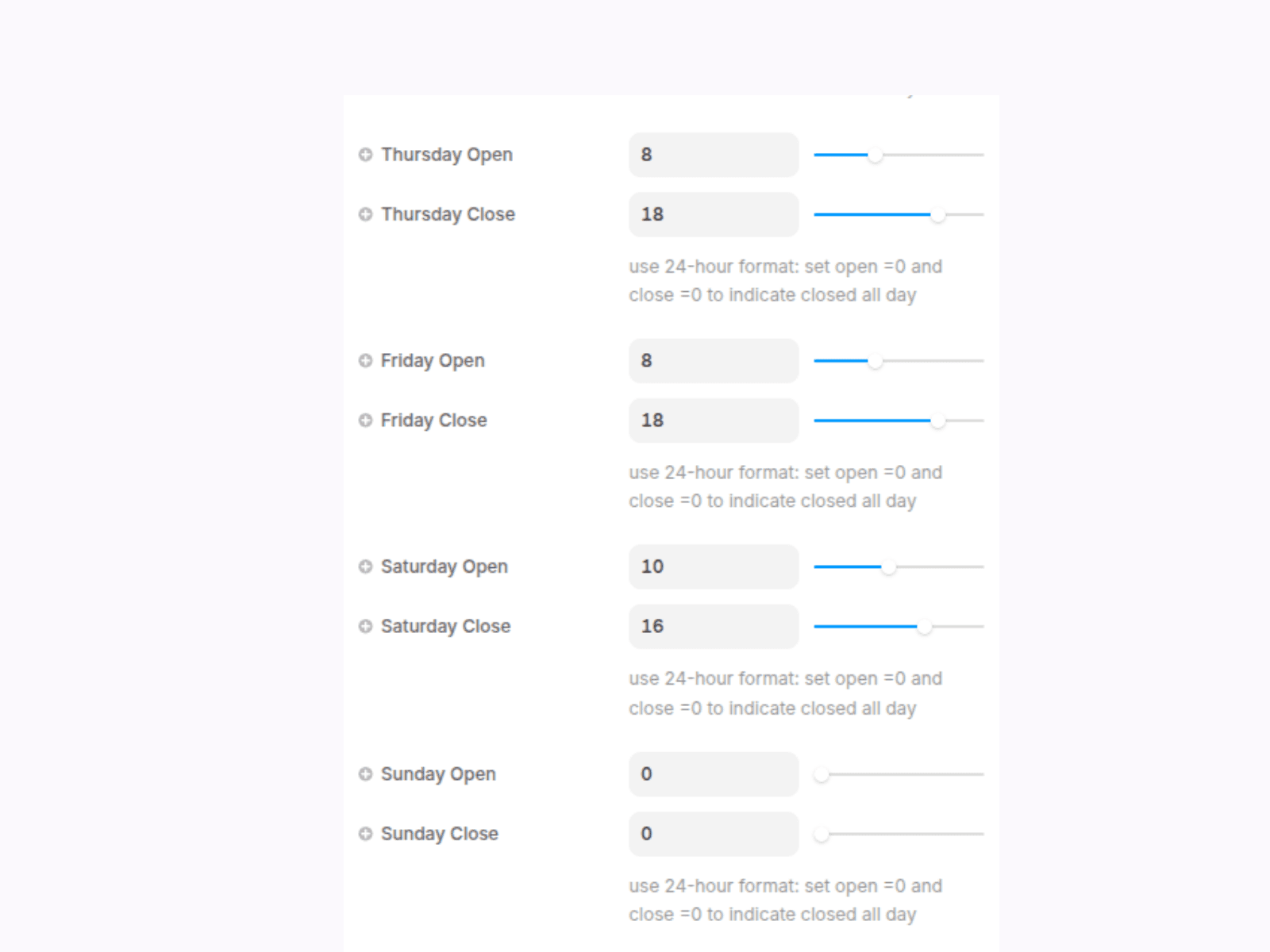
Set Hours: Use 24-hour format (0–23 open, 0–24 close). Example: 9–17. For closed days, set open=0 and close=0.
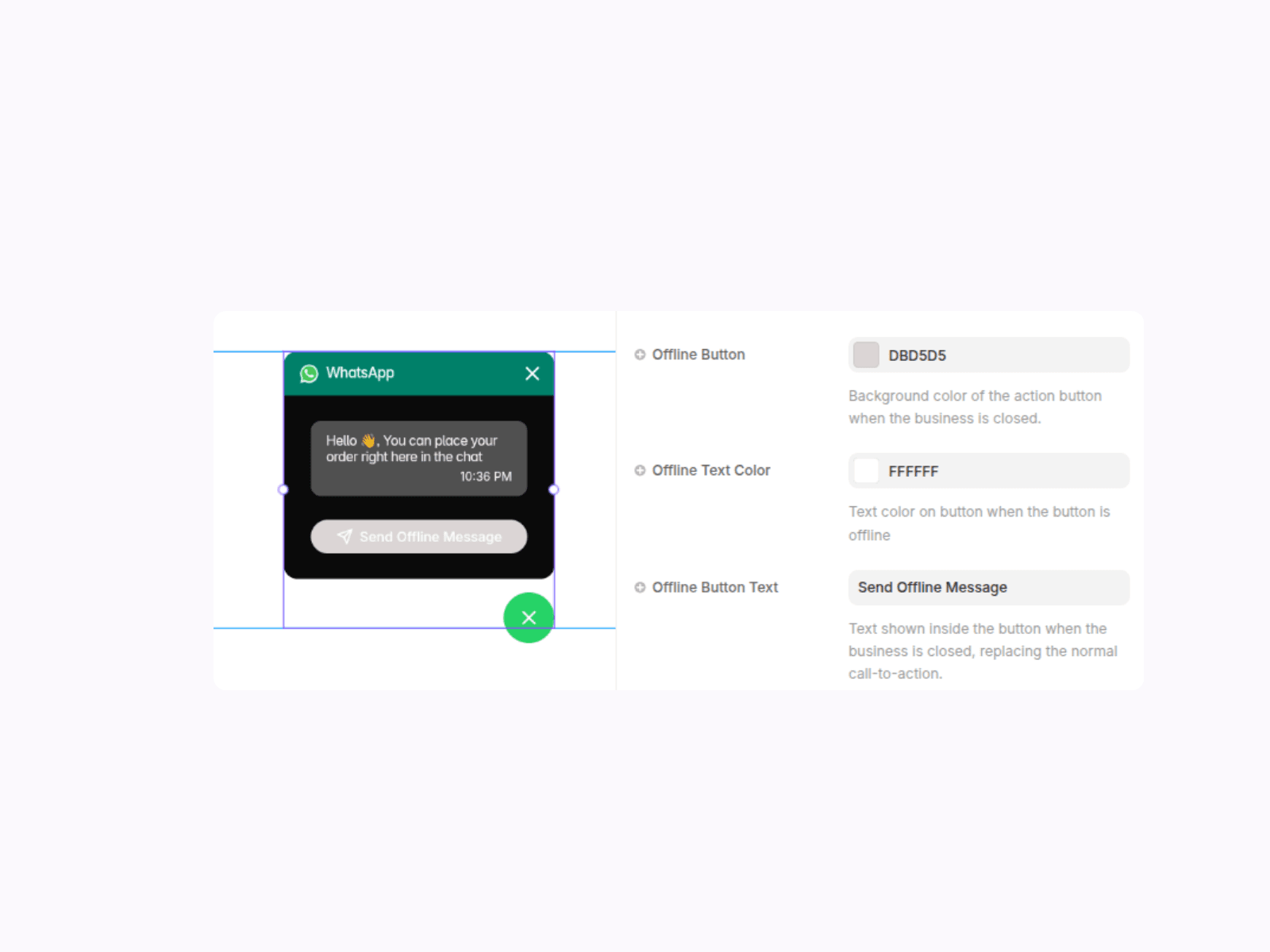
Offline Appearance: Set button color (default gray #DBD5D5) and text (default “Send Offline Message”) for offline hours.
After customizing, set the variant to Closed .