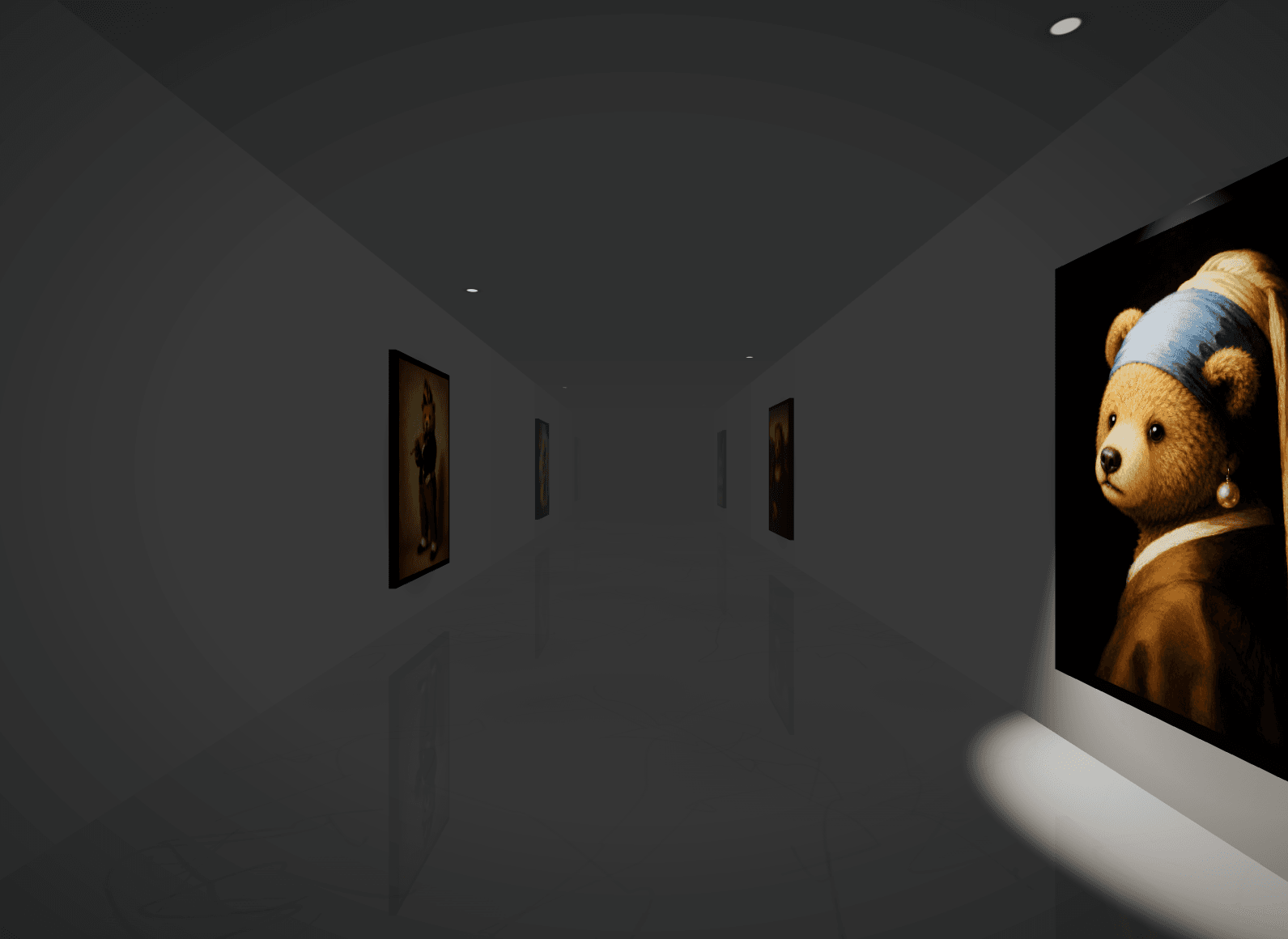
About Infinite CMS Gallery
About this Component
Step into an infinite exhibition! Scroll to walk the endless hallway, hover to watch the canvas sway, and click to step closer to an artwork. A fine art museum for your portfolio or brand lookbook.
Component Properties
CMS List: Artworks hang in CMS order and stay in sync.
Labels: Show or Hide. Displays the title and description on the wall beside an artwork when you click it (CMS only).
Images: Add any number; they alternate along both walls in an infinite loop.
Frame: Framed (black float frame) or Poster (no frame, poster-on-the-wall look).
Ratio: Portrait 17:22 (default, also suits 3:4 and 4:5), Poster 2:3, Tall 3:5, Square 1:1, Landscape 3:2 or Wide 16:9.
Fit: Fill crops edges if the ratio differs. Fit shows the whole artwork on a soft white mat, ideal for illustrations or text near the edges.
Interactions
Scroll: Walk the hallway with smooth inertia (mouse wheel and touch), endlessly in either direction.
Hover: The canvas tilts and sways, with lighting reacting to the movement.
Click: The camera glides toward the artwork. Click again or scroll to return.
Use Cases
Portfolio Showcases: Replace image grids with a walkable exhibition under dramatic lighting.
Fullscreen Heroes & Landings: Place it in a full-bleed 100vh section to turn your page into a museum.
Image Guidelines
Images are never stretched. Set Ratio to match your images and export at 2048 px on the long side (e.g. 1582 × 2048 for Portrait), JPG or WebP.
Important Note
Animations only work in Preview. On the editing canvas the component may look paused or empty.
How to Install
Copy and paste the component URL onto your Framer canvas.
How to Connect Your CMS
Add a Collection List to your page. Select CMS in the properties, choose the collection, and drag the connector to the Collection List. The hallway now mirrors your CMS.
To show captions, add text layers inside the Collection List item and connect them to your CMS fields. Name them Title and Description.