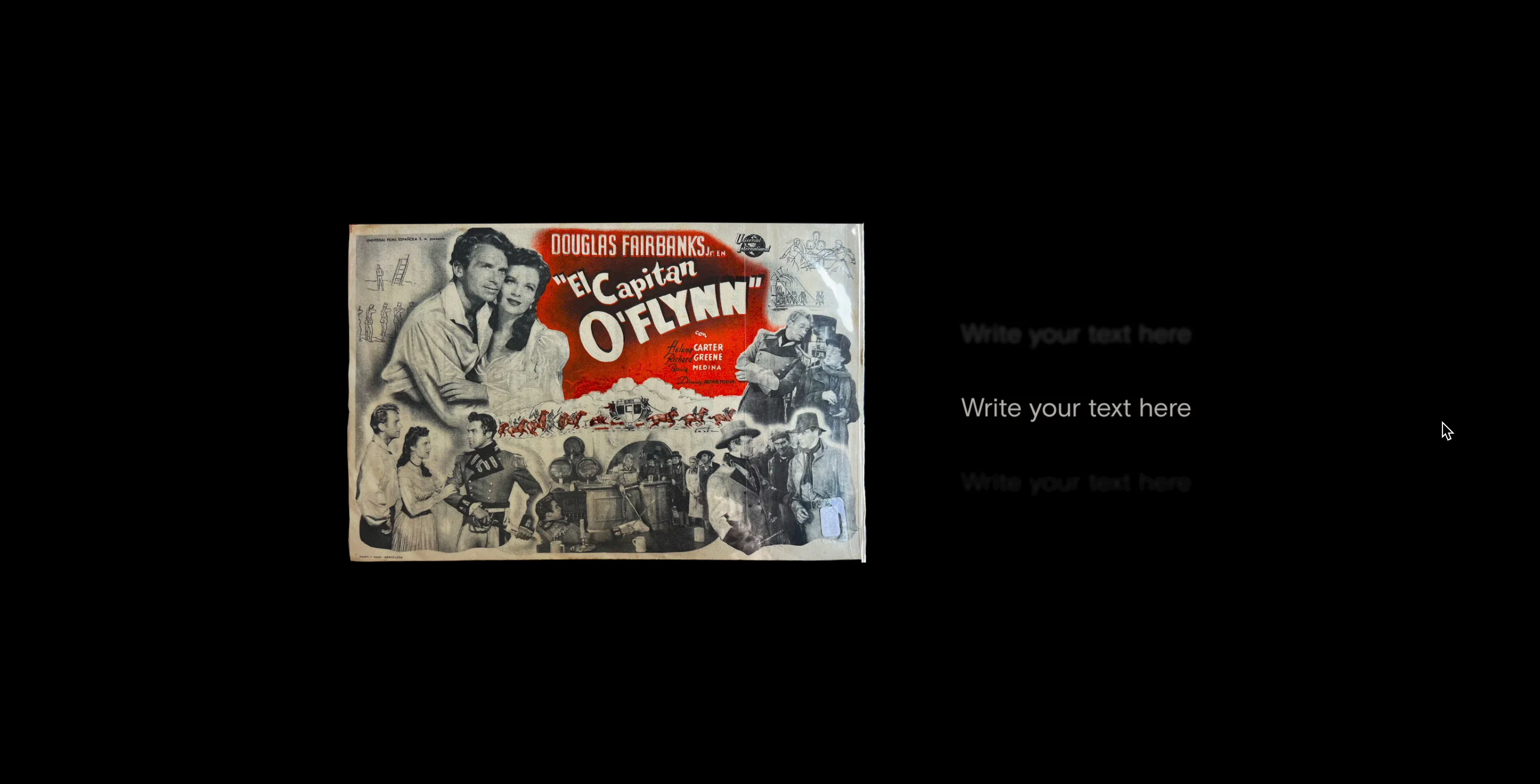
About Sticky Scenes
Turn a series of images and captions into a story that unfolds as visitors scroll. Images crossfade in a sticky layout while captions move along a fixed vertical axis. Use it to reveal the details of a project, walk through a creative process, or build an editorial section for your portfolio.
What you can customize in Framer
Scenes. Add, remove, and reorder image-and-caption pairs. The component starts empty, ready for your own content.
Image size and position. Set each image’s width and move it left or right independently. Images keep their original proportions, so you can balance wide photographs, tall images, and cutouts within the same story.
Caption typography. Choose the base font, size, line height, and color. Set the maximum text width to control how captions wrap.
Styling for individual words. Enter the exact word or phrase you want to highlight in the Texto alternativo field, then give it a different font or scale it from 50% to 200% of the base text size. The rest of the caption keeps its original styling.
Custom caption layers. Connect your own Framer text frames, one per scene, to use your own caption layouts.
Spacing. Adjust the gap between the image and text columns separately from the vertical spacing between captions.
Scroll pacing. Set the base scroll distance between scenes and fine-tune the speed from 0.5× to 3×.
Caption visibility. Adjust the opacity of the previous and next captions, or set it to 0% to show only the active caption at rest.
Canvas preview. Choose which scene is in focus while you edit, so you can check its image placement and typography directly on the canvas.
On wider layouts, images sit beside the captions. On narrow layouts, they stack. The component also supports a static layout for visitors who prefer reduced motion.